I recently posted about this on Twitter, but thought it might be useful to share it here on my blog too.
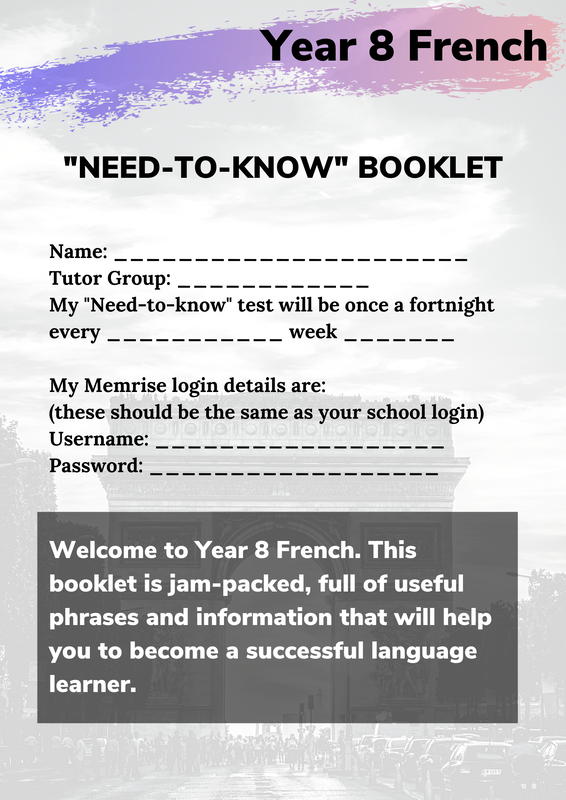
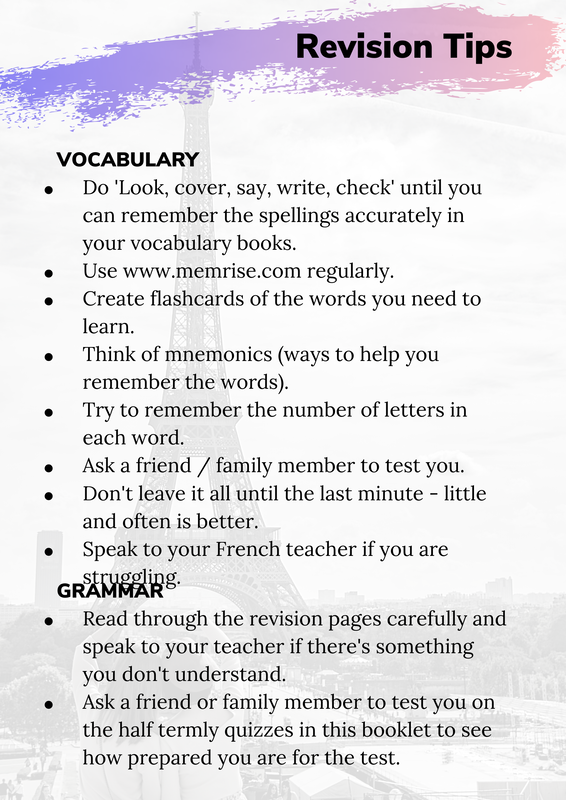
This is something we have started doing this year to develop our students’ knowledge of vocabulary. I'm aware it's not perfect and there may be issues with it, but this has been our first year trialling this. As I’m sure you can imagine it took a very long time to make all of this, so please be kind / constructive in your feedback. All vocabulary test booklets are free to download at the bottom of this post. HOW WE TEST VOCABULARY All Year 7 and Year 8 MFL students were given an A5 booklet at the start of the school year. This contains the vocabulary they’ll be tested on throughout the year, matching up with the order of our department’s scheme of work. Phrases are written in the target language in the first column, with the English translation in the second. The final column was originally left blank to allow students to do Look, Cover, Say, Write, Check (students were encouraged to copy it out elsewhere as well if they needed to). All phrases were added to our departmental Memrise account and groups set up at the start of the year, so that colleagues just needed to share the appropriate links with their students to invite them to join the groups. Vocabulary tests are fortnightly - the same time each fortnight as decided by the individual class teacher. Upper sets are asked to learn the full phrase, whereas lower sets are only tested on the parts in bold. Marks are out of /20 (2 marks per question. 1 mark if they’ve had a really good go at it, 2 marks if it’s perfect. Students are told to bring these booklets in every lesson and can also use them to help with classwork in some cases (including conversations - I have tried to include a question for each of the tests). All vocabulary tests (and answers) were on a PowerPoint ready at start of year, which has decreased our workload throughout year as we have not needed to think about which vocabulary to test students on - it was all ready for us. Students peer marked in class and kept a log of their scores on the tracking sheet in their books. REWARDS I created a OneDrive spreadsheet where MFL colleagues were able to add names of students who were working really hard / performing well in VTs once a half term. These students received house points and a positive postcard home. Students also regularly receive MFL points / House Points for high vocabulary test scores. FEEDBACK... Feedback from colleagues was that students have started to use complex phrases in assessments, despite not always being explicitly taught the phrases in lessons - they had learnt them at home for the vocabulary tests. My Head of Department also carried out a survey with his classes and the majority of students said it helped them with assessments. Feedback from the survey was very positive. Some feedback from students was that the space to practise writing out the phrases was too small. ...AND HOW WE'VE ADAPTED IT FOR NEXT YEAR Due to budget constraints and students potentially losing the booklets if they’re not glued into their grammar and vocabulary exercise books, we didn’t want to print in A4. For next year I have adapted the booklets to include a ‘RAG rating’ of how well they know the phrase. Students will use the back of their exercise books to practise writing out the phrases. My Head of Department has also asked me to adapt these booklets, replacing one vocabulary test per half term with a grammar test, so I'm working on this currently for next year and will share once it's all done. As it's not just vocabulary anymore I've changed the booklet covers from 'Vocabulary Tests' to 'Need-to-knows' (I magpie'd this name from Twitter - thanks to whoever it was who shared this. Apologies, but I can't remember who it was). Please let me know if you end up using my resources. I'd love to hear from you! Dannielle x 

35 Comments
The #mfltwitterati has amazed me for years now, but there are so many incredible and inspiring resources being shared at the moment, that I'm actually finding it hard to keep track of it all. The legend that is @OllieMFL shared his beautiful GCSE Spanish grammar booklet recently on TES - highly recommend this (do consider buying him a coffee though as this resource must have taken him absolutely ages to make). The incredible @Aurelie_LTH is also constantly sharing her marvellous and well thought-out resources on her dropbox. I've also been inspired by the lovely @Missktripp - she tweeted a picture of her Virtual Classroom and I just had to get in on the action. She kindly emailed me with some info on how to go about this and thankfully it was actually much more straightforward than I anticipated. Thank you to Miss Tripp for sharing this info with me and sending me this tutorial by Thomas Blakemore. 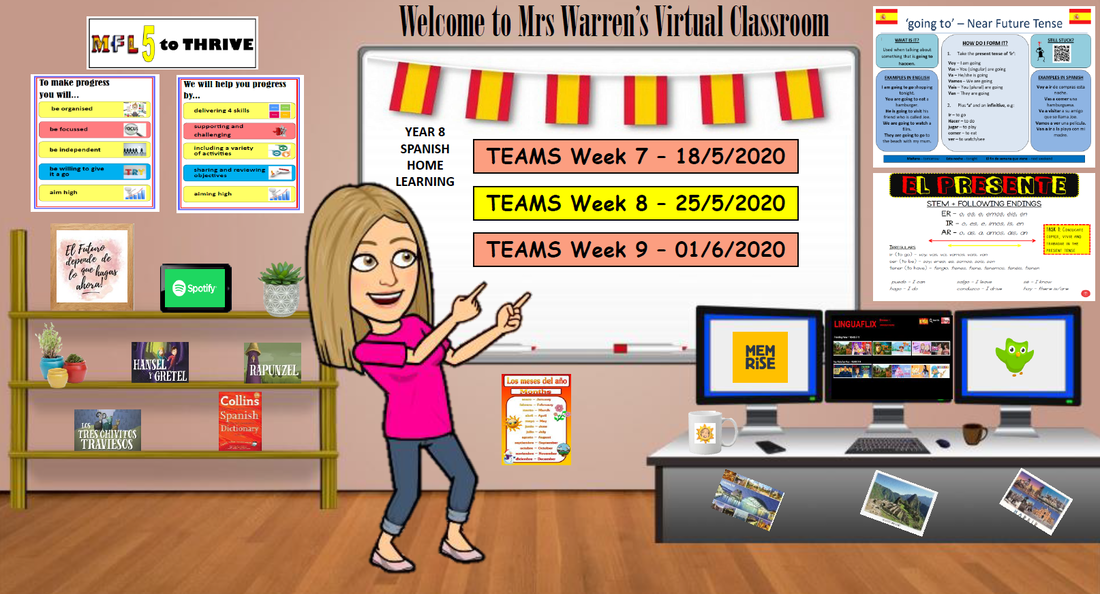 In the end I just created my own classroom using PowerPoint (the background was from Thomas Blakemore's dropbox, as shared below his YouTube tutorial). I added a few posters to the wall and added hyperlinks to these (right click the image, click hyperlink, insert URL next to where it says address). @MFLWyedean also shared their fantastic 'Linguaflix' resources (suggestions of French and Spanish films to watch on Netflix), so I added this too. The postcards on the desk link to tourism videos on YouTube of French/Spanish speaking cities. The dictionary links to WordReference and the iPad links to the Duolingo Spotify playlists. The books link to audio books on The Fable Cottage which looks great for listening skills. FINALLY, I've added direct links to our home learning resources on Teams on the whiteboard. Once I'd finished I just saved as a PDF and then emailed this to my students, so all they need to do is open the PDF to explore the classroom and the links. Feel free to download the PDF below and have a play. The Teams resources link have been deleted on this version so you won't be able to click these, but all the other links should work. I've also shared the KS3 Spanish and KS3 French PowerPoints, so do feel free to adapt these. If you share on Twitter, make sure you tag @missktripp as I nicked the idea off her! And don't forget to water the plants! :) Dannielle 
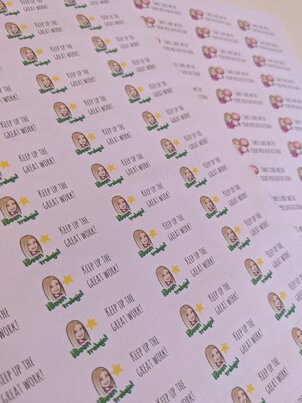
I'd love to see pictures of your bitmoji stickers, so do tweet me / tag me in them if you share them on social media. Dannielle x |
|||||||||||||||||||||||||